Limit a team member to specific realms
Time: ~5 min · Prereqs:
- Admin role in your Kevra organization
- At least one Identity realm the member should work on
What you'll set up
You give a member of your organization access to some of your Identity realms only. That member sees just those realms in the Kevra console and gets admin rights on just those realms in the Keycloak admin console. Use this when, for example, a dev team needs a test realm but should not touch your production realms.
Before you begin
By default every member sees every Identity realm of your organization. The limit is opt-in per member, so members you already have keep their current access until you change it.
The limit only applies to the Member role. Organization admins always see every realm.
Step 1: Open the member
- Sign in to the Kevra console as an organization admin.
- In the left menu, under My Account, click Organization.
- Click the member's name in the members list.
Step 2: Choose the realms
- Check that Role is set to Member.
- Turn on Limit to selected realms.
- Under Allowed realms, tick each realm this member should see.
- Click Update Access.
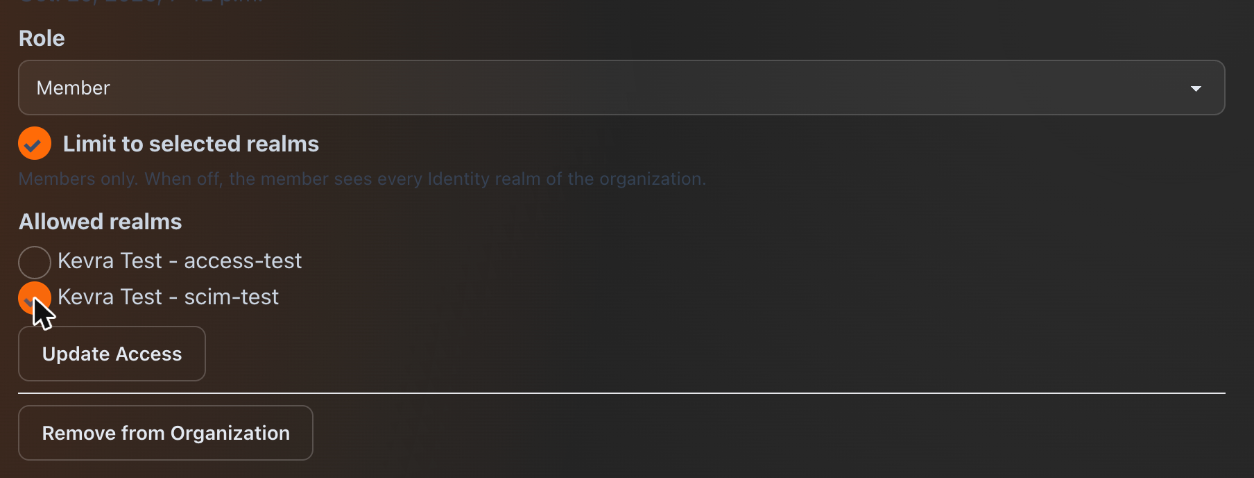
Kevra removes the member's admin rights on the other realms right after you save. If the member has the Keycloak admin console open in a browser tab, reload it to pick up the change.
Invite a new member with limited access
The invitation form has the same two fields, so a new member never sees the other realms, not even right after joining.
- On the Organization page, go to Invite Organization Members.
- Enter the email address and leave the role as Member.
- Turn on Limit to selected realms and tick the allowed realms.
- Click Send Invitation. The limit applies as soon as the person accepts.
Verify it worked
Ask the member to sign in, or check with them, that:
- Deployments and Monitoring list only the allowed realms.
- Activity & logs offers only the allowed realms in the realm picker.
- Open Admin Console on an allowed realm lands in Keycloak, and the realm switcher lists only the allowed realms.
A link to any other realm returns "not found" for this member.
Change or remove the limit
- To add or remove a realm, open the member again, change the ticks, and click Update Access.
- To give full access back, turn off Limit to selected realms and click Update Access.
- When you remove someone from your organization, Kevra also removes their Keycloak admin rights on all your realms.
Troubleshooting
The member sees no realms at all. The limit is on and no realm is ticked, or the only allowed realm was deleted. Tick at least one realm. Kevra never falls back to "all realms" on its own.
The member still sees every realm. Check the role. Admins are never limited; change the role to Member and save.
Next steps
- Configure inbound SCIM provisioning on the realm your team works on.